

A clash-free model is a starting point, not a finish line. The problems that show up on site, like a panel door that swings into an adjacent duct or a mechanical unit that can't be rigged without removing surrounding work, don't show up in automated detection. They show up when someone walks the space. This guide covers taking your Navisworks coordination model into VR, reviewing and annotating it, and exporting those annotations back into Navisworks as viewpoints.
TLDR:
- Navisworks has no native VR output; the workflow requires exporting an NWD file into a separate VR review tool.
- Turn on "May be re-saved" when exporting your NWD, or the import will fail in every VR tool that accepts Navisworks files.
- VR surfaces access, sequencing, and clearance problems that clash detection cannot find, like a panel door that swings into adjacent ductwork.
- Choose a VR tool that runs the full federated model on a wireless headset and syncs issues two-way to ACC, Procore, or Revizto.
- Resolve accepts NWD and NWF files directly and runs full federated MEP models on a wireless Meta Quest with no geometry simplification required.
- Annotations left in VR export from the Resolve web dashboard as a Navisworks XML file and import into Navisworks as viewpoints, each labeled with annotation number, author, and issue text.
What Navisworks VR Actually Means
Navisworks is a coordination workhorse. It federates models, runs clash detection, and handles geometry that would crash most other tools. What it does not do is put you inside the model.
"Navisworks VR" refers to a workflow, not a built-in feature. You take the federated NWD or NWF file you have already built in Navisworks and open it inside a separate VR review tool, where a team member can walk through it at human scale on a headset. Navisworks has no native VR output and no headset support. The export step bridges the two.
In practice, the workflow involves exporting your Navisworks file in a format a VR tool can ingest, then loading that model into the headset environment. The coordination work stays in Navisworks. The VR tool handles the spatial review layer on top of it, and annotations made in VR come back into Navisworks as viewpoints.
Why Teams Add VR to Their Navisworks Workflow
Clash detection is a filter, not a finish line. Navisworks tells you whether a pipe intersects a beam. It does not tell you whether a technician can reach the valve at the end of that pipe, or whether the corridor is wide enough to wheel in a service cart.
A clash-free model still contains decisions that only reveal themselves at human scale. A ceiling height that reads as adequate in plan feels claustrophobic when you are standing under it. An electrical panel that passes every clearance check on paper can still be blocked once adjacent specialty contractors install their work around it.
VR adds a review step that works differently. You walk the model instead of querying it. A superintendent treating the headset like a site walk will spot a confined equipment room that needs a different installation sequence before anyone has lifted a piece of steel.
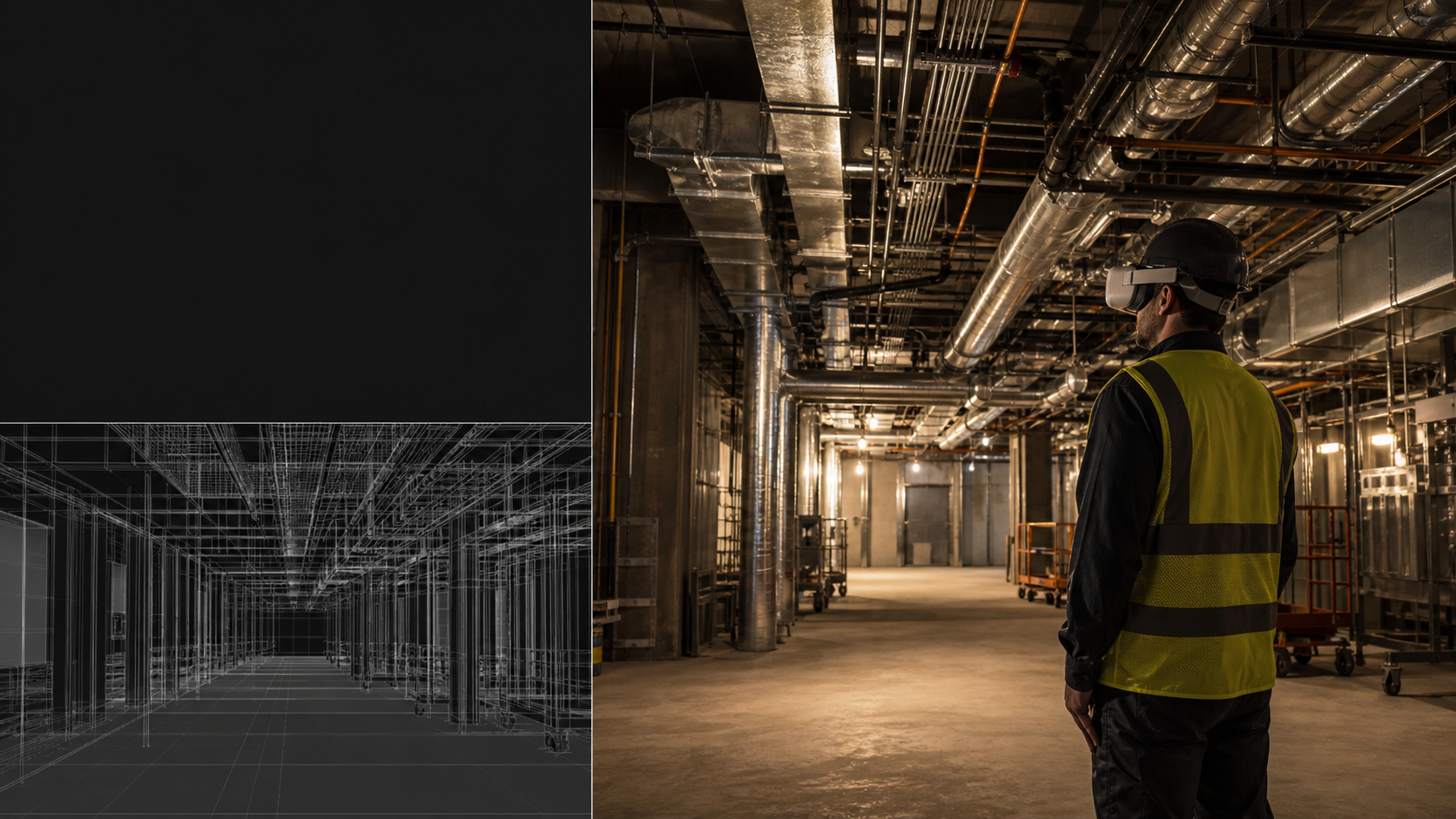
Navisworks optimizes for clashes, leaving everything else unchecked: inaccessible equipment, poor sequencing, and work that makes no sense in that spot once you are standing inside it.
The two tools do not overlap. Navisworks runs first in the construction clash detection process. VR runs after, checking what automated detection cannot.
Preparing Your Navisworks Model for VR
Getting your Navisworks file into a VR tool takes a few deliberate steps. Skip any of them and the import either fails or the session runs poorly.
Export Settings
When saving your NWD, turn on the "May be re-saved" option in the export dialog. Without it, downstream VR tools cannot ingest the file. This is one of the most common reasons an import fails on the first attempt.
Use NWD for sharing outside your own machine. NWD packages everything into one file and travels better. NWF files reference original source files and require those files to be accessible at import time.
Federation Before Export
Federate all discipline models inside Navisworks before you export as part of your BIM coordination workflow. Mechanical, electrical, plumbing, structural: combine them into one project, then export the full federated file. Uploading one discipline at a time and expecting the VR tool to handle federation is slower and messier.
Scoping the Model
Organize the model in Navisworks before you export. Resolve runs dense, federated, vendor-heavy models without performance problems, so a full campus NWD loads as-is. Other VR tools may need the export scoped to the area under review: hide irrelevant objects before export, or use saved viewpoints to isolate the space the session actually covers.
Choosing a VR Tool That Supports Navisworks Files
A few VR tools accept Navisworks files, but they are not interchangeable. Three factors separate a tool built for coordinated BIM from one that technically opens the file and stops there.
PC Tether vs. Wireless Standalone
Tethered tools require a gaming PC connected to the headset during the session. That limits where reviews happen, adds setup friction, and rules out most field locations. Wireless standalone headsets, like the Meta Quest line, remove the cable and the PC requirement. A superintendent reviewing on site cannot carry a tethered PC rig, and conference rooms rarely have one available for a spontaneous stakeholder review.
Model Performance at Full Federated Scale
Federated Navisworks models for complex MEP projects can be very large, which is where large project BIM coordination practices matter. Some VR tools handle this by asking you to downsize the model first, which defeats the point of coordinating a full federated file. Ask vendors directly how they handle geometry-heavy files without simplification.
Issue Sync Back to Your CDE
A VR session that cannot write issues back to ACC, Procore, or Revizto is a closed loop. Two-way sync matters: issues created in the headset should appear in your existing issue log, and status changes in those tools should flow back into the VR environment.
| Evaluation Criterion | Why It Matters |
|---|---|
| Wireless standalone headset support | No PC tether required for field and conference use |
| Full federated model performance | No forced downsizing before sessions |
| Two-way issue sync (ACC, Procore, Revizto) | Issues flow into and out of existing workflows |
| Guest access without accounts | Trade partners and owners can join without licenses |
Running the VR Walkthrough: Step by Step
Once your NWD is exported and ready, session setup is straightforward.
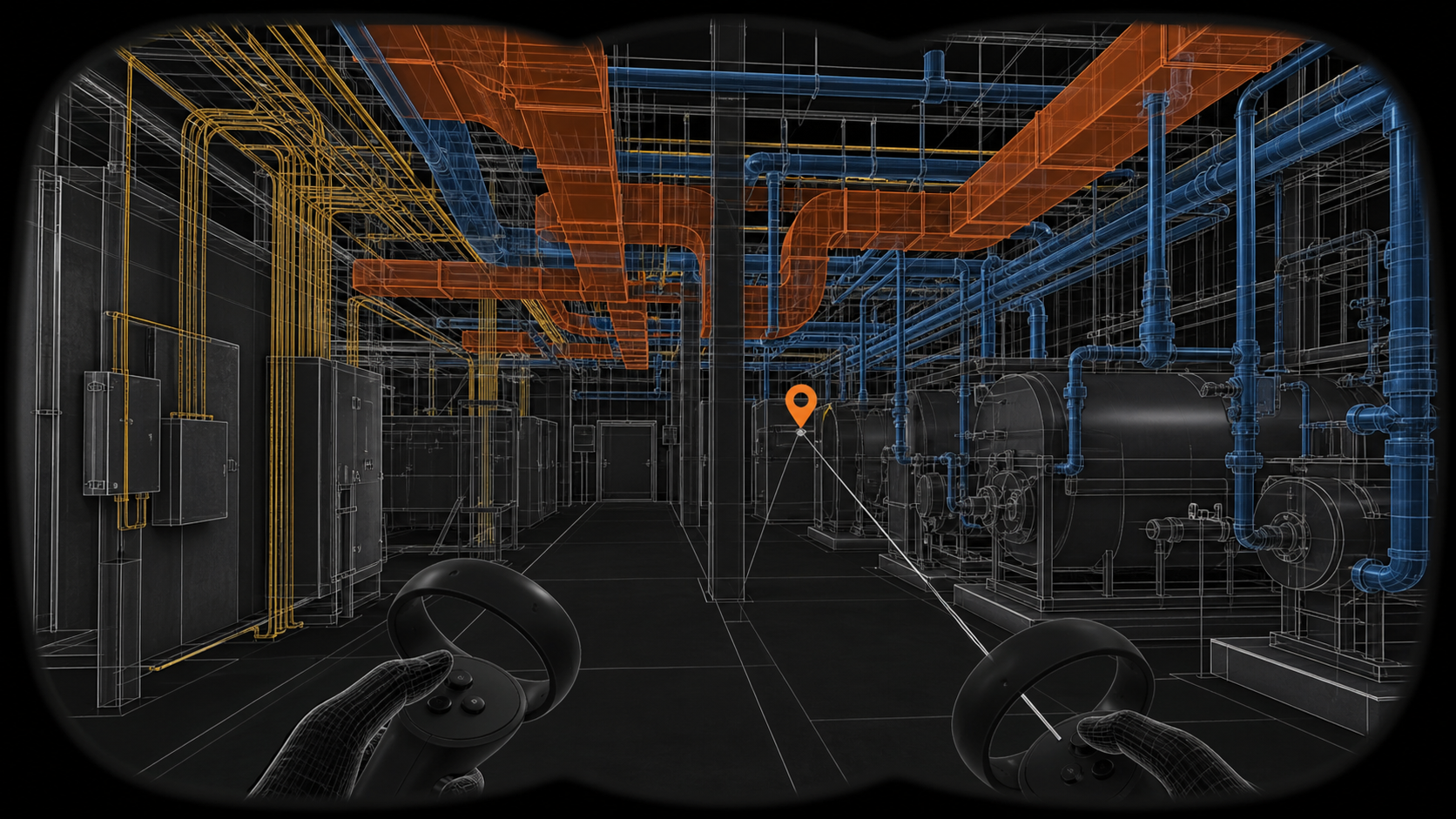
In Resolve, the app automatically pulls the latest version of the model from Autodesk Construction Cloud or BIM 360 Docs as part of a broader BIM coordination and VDC workflow. Other tools may require a direct upload instead. If you are federating multiple discipline files, combine them inside the tool before launching. Set up once, and the model syncs automatically when files update.
Open the model in VR using the Resolve app, available on the Meta Quest store, then enter the session as a virtual avatar. Navigation typically offers two modes:
- Teleportation snaps you instantly to a target location, which is faster for jumping between floors or areas.
- Free locomotion lets you walk through spaces continuously, which works better for reading tight corridors at pace.
Non-headset participants join via a browser link with no download or account required. They can follow the headset user's perspective in real time or move through the model independently. An iPad participant can do the same from the field.
Once inside, move through the model the way a technician would move through the building. Stand in the mechanical room. Check whether there is space to open a panel door with adjacent work installed around it. Walk the corridor at ceiling height. The issues that surface here passed every automated check because geometry relationships do not capture what human access feels like at scale. When you find an issue, leave an annotation by speech-to-text so you document it without leaving VR. Annotations stay attached to the model even when the model updates.
What to Look for During a Navisworks VR Review
VR walkthroughs surface the things that will cause problems on site, beyond the things that look wrong in a model view.
Focus on access first. Stand in front of every major piece of equipment and ask whether a technician can reach it with tools in hand. A valve five meters up a congested catwalk, a panel door that swings into an adjacent duct, a filter that requires removing surrounding work to replace: these show up immediately in VR and are invisible in plan.
Walk every corridor at full height. Ceiling-mounted runs from multiple trades tend to stack up in the same zones. A passage can meet code clearances on paper and still feel impassable when you are standing inside it carrying equipment.
Watch for sequencing conflicts, something a federated BIM model viewer makes visible at scale. A mechanical unit that can only be rigged through a roof opening that gets closed in the same phase is a sequencing problem, not a clash. VR is where that sequence becomes visible.
A practical checklist for the session:
- Equipment access: can a technician reach it for routine maintenance?
- Corridor and aisle clearance at human scale
- Electrical panel working space with adjacent work installed
- Rigging and installation sequence conflicts
- Confined spaces that require special procedures to enter
- Health and safety risks, such as a robot arm or other moving equipment whose swing could injure someone
Creating and Syncing Issues Back to Your CDE
Issues created during a VR session have no value if they disappear when the headset comes off. The sync step connects the review to your actual coordination workflow.
In Resolve, annotations created in VR push to ACC, Procore, or Revizto directly from the headset or web dashboard. Each synced issue carries the annotation text, author, and a timestamp. ACC and Revizto both support two-way sync, much like how Resolve's model federation combines and updates data automatically: when a coordinator marks an issue resolved in the CDE, that status change flows back into Resolve. You are not managing two separate logs.
Procore sync works through Coordination Issues, activated via the Procore Marketplace before account linking.
The result: a superintendent who flags a confined-space access problem from inside the headset creates an issue that lands in the same log your project team is already working from. No screenshots exported to email. No separate spreadsheet to sort through after the session.
Exporting Annotations Back to Navisworks
You can also bring VR annotations back into Navisworks itself, keeping the coordination model and the review notes in the same place.
- Open the Resolve web dashboard and find the model you reviewed.
- Go to the Annotations section to review every issue documented in VR.
- Export the annotations as a Navisworks XML file.
- In Navisworks, open the corresponding model, go to the Viewpoints menu, right-click, and choose Import Viewpoints.
- Select the XML file downloaded from Resolve.
- Review the imported viewpoints. Each is labeled with the annotation number, author, and issue text from Resolve.
Manage these like any other issue in your Navisworks workflow. Escalate them through any issue-tracking system that integrates with Navisworks using the imported viewpoints.
Who Should Be in the VR Session
The most useful VR sessions bring in people beyond the coordination team. A superintendent knows how equipment gets rigged into a space, a judgment call that matters when weighing off-the-shelf vs. custom VR tools for construction. A facilities manager knows which panels get opened twice a week and which corridors double as service routes. That judgment shapes coordination decisions in ways that desk-side model review never surfaces.
Cross-device access removes the headset as a barrier. A VR participant moves through the model on a Meta Quest. Everyone else joins from a browser link with no download and no account required. Web participants can follow the headset user's perspective in real time, or move through the model independently. An iPad participant can do the same from a tablet on site.
A practical session might look like this:
- A VDC coordinator running the headset
- A superintendent joining from a tablet in the site trailer
- Trade partner leads connecting via browser link
- The owner's facilities lead joining from their office
All of them are in the same model at the same time.
How Resolve Handles Large Navisworks Models in VR
Resolve accepts NWD and NWF files directly, with one requirement: the "May be re-saved" export setting must be turned on before saving from Navisworks. Once uploaded, you can federate multiple discipline models inside Resolve, then run the full federated result on a wireless Meta Quest headset with no PC tether and no geometry simplification required. The Resolve app on the Meta Quest store also pulls the latest model version automatically from Autodesk Construction Cloud or BIM 360 Docs, so the headset opens current work.
The display system behind this is the Wellington Engine, built in C++ and compiled to native graphics APIs including Vulkan and WebGPU. It uses virtualized geometry and custom occlusion culling to handle the geometry density in complex MEP coordination models without dropping frames or requiring you to reduce the model first.
That matters on the project types where Navisworks VR workflows get used most: hyperscale data centers, pharma facilities, hospitals, water infrastructure. These are not light models. Resolve reports supporting over $50B in construction projects and more than 6 GW of data center portfolio delivery, largely on projects where a federated Navisworks file represents months of coordination work across dozens of trade partners. The headset needs to handle that file as-is.
Final Thoughts on Navisworks VR for Coordination Teams
The coordination work you do in Navisworks is only as good as what it prevents on site. VR adds the review layer that catches what automated detection leaves behind, and it works best when you bring in the people who actually build and maintain the space. Your federated NWD is already most of the way there. Start a free Resolve trial and walk your model before anyone lifts a piece of steel.
FAQ
How does VR improve construction model reviews compared to traditional Navisworks walkthroughs?
Navisworks clash detection answers whether two objects occupy the same space. It cannot answer whether a technician can reach a valve, whether a corridor feels passable carrying equipment, or whether an electrical panel has real working clearance once adjacent trade partners install their work. VR adds a spatial review step where you walk the model at human scale, surfacing constructability, sequencing, and access issues that pass every automated check because geometry queries cannot replicate what human-scale movement reveals.
What are the main differences between Resolve and Autodesk Workshop XR for Navisworks VR reviews?
Resolve accepts NWD and NWF files directly, runs full federated models on wireless Meta Quest headsets without a PC tether or geometry simplification, and syncs issues two ways with ACC, Procore, and Revizto. Resolve targets the construction side: GCs, VDC teams, and trade partners, not design-side Revit users. Workshop XR markets primarily to engineers and designers within the Autodesk authoring-tool ecosystem.
How do I export a Navisworks model for VR without the import failing?
Turn on the "May be re-saved" option in the Navisworks export dialog before saving your NWD file. Without it, most VR tools cannot ingest the file, and this is the most common reason a first import attempt fails. Use NWD over NWF when sharing outside your own machine, since NWF files require access to the original source files at import time.
Can a superintendent or trade partner join a Navisworks VR session without a BIM license or account?
Yes. In Resolve, participants without accounts join via a secure browser link with no download or login required. A superintendent can join from a tablet in the site trailer, trade partner leads from a browser, and an owner's facilities lead from their office, all in the same model simultaneously. The headset operator moves through the model in VR while every other participant follows in real time or moves independently on their own device.
What construction tech tools integrate with Procore and Autodesk for BIM model review in VR?
Resolve integrates directly with Autodesk Construction Cloud (ACC), BIM 360, and Procore for model sync and two-way issue tracking. Issues created in a VR session push to your existing issue log in ACC or Procore, and status changes in those tools flow back into Resolve. Revizto integration is also supported via API access, covering teams already running coordination workflows through that tool.
How do I bring VR annotations back into Navisworks?
Export the annotations from the Resolve web dashboard's Annotations section as a Navisworks XML file. In Navisworks, open the model, right-click in the Viewpoints menu, choose Import Viewpoints, and select the file. Each viewpoint carries the annotation number, author, and issue text, so you manage them like any other Navisworks issue.
It's time to build in months, not years.